If you’re searching for ways to gain a real edge in your favorite games, you’re in the right place. Whether you’re grinding ranked matches, experimenting with new mods, or fine-tuning your setup for peak performance, this article is built to give you practical, up-to-date insights that actually make a difference.
Gamers today face an overwhelming amount of advice—conflicting strategies, outdated guides, and generic tips that don’t translate to real wins. Here, we cut through the noise. You’ll find clear breakdowns of trending topics, smarter in-game strategies, community-driven discoveries, and pro-level optimization advice—including how to dial in the best competitive gaming monitor settings for faster reactions and smoother visuals.
Our content is grounded in hands-on testing, active community feedback, and deep analysis of current gaming trends. That means no fluff—just actionable guidance designed to help you play smarter, perform better, and stay ahead of the competition.
Every millisecond counts in competitive gaming. Think of your monitor as a race car windshield: if it’s smudged or misaligned, you’re reacting to ghosts instead of opponents. Default presets favor Netflix, not headshots.
Dialing in competitive gaming monitor settings is like tuning a guitar before a concert—small twists create sharper notes and faster reactions. Focus on:
- Refresh rate and response time for smoother motion
- Brightness and contrast to spotlight enemies
- Input lag reduction features to cut delay
Some argue skill outweighs setup. True—but even pros tighten their laces before a sprint. Calibrate, then compete. Win with clarity.
The Core Four: Non-Negotiable Settings for Peak Performance
When it comes to competitive gaming monitor settings, small tweaks create measurable advantages. These four are non-negotiable if you care about reaction time, clarity, and consistency.
1. Refresh Rate (Hz)
Refresh rate is king. A 240Hz monitor updates the image 240 times per second—double the visual data of 120Hz. NVIDIA research shows higher refresh rates can improve target acquisition and reduce missed shots in fast-paced shooters (NVIDIA Developer Blog, 2020). Pro players overwhelmingly use 240Hz or higher for this reason.
Set it in both your operating system and GPU control panel. (Yes, both. Missing one is the classic “Why does this feel off?” mistake.)
2. Response Time (Overdrive)
Response time controls how fast pixels change color. Too slow, and you get motion blur. Too fast, and you’ll see inverse ghosting—bright trails that look like afterimages. Testing tools like Blur Busters’ UFO Test provide visual proof of these artifacts. For most monitors, the middle “Fast” setting balances clarity without overshoot.
3. Adaptive Sync (G-Sync/FreeSync)
Adaptive Sync eliminates screen tearing, but multiple latency tests from Blur Busters indicate it can introduce slight input lag when paired with V-Sync. Competitive players often disable both to minimize latency. Smoother isn’t always faster.
4. Game Mode/Preset
Use the built-in FPS or Gaming preset. These modes disable extra image processing, which testing consistently shows increases input lag. Less processing equals faster signal delivery.
Pro tip: After changing settings, reboot your system to ensure they apply correctly.
Dialing in Visuals: How to See Enemies in the Shadows
Once performance is locked in, clarity becomes your competitive edge. The goal isn’t just a prettier image — it’s faster reactions, cleaner target acquisition, and fewer “Where did I just get shot from?” moments.
Some players argue that default visuals are how the game was “meant” to be played. And sure, developers design lighting for atmosphere. But atmosphere doesn’t win ranked matches — visibility does. Dialing in your competitive gaming monitor settings gives you a measurable advantage when milliseconds matter.
Black Equalizer / Shadow Boost: This is your most powerful visibility tool. It brightens dark areas without overexposing bright ones. In games like Valorant, CS:GO, or Call of Duty, this reveals enemies tucked into shadowy corners. Start mid-range and increase until you see detail without washing out the image. The benefit? Earlier detection and fewer surprise eliminations.
Color Vibrance / Saturation: Increasing vibrance makes character models pop from the environment. NVIDIA calls it “Digital Vibrance,” AMD labels it “Saturation.” Many pros sit between 60–80%. Higher vibrance speeds up visual processing (your brain locks onto contrast faster), which improves reaction time.
Brightness & Contrast: Use an online grayscale test to avoid crushed blacks or blown-out whites. Balanced contrast ensures you distinguish subtle movement in dark hallways — not just silhouettes.
Sharpness: Keep it neutral. Over-sharpening adds distracting halos (like putting Instagram filters on a firefight).
Of course, great visuals won’t fix bad posture during marathon sessions. Pair your setup tweaks with optimizing your gaming chair and desk for long sessions to maintain peak focus.
When your screen works for you instead of against you, every angle feels more readable — and every gunfight more winnable.
Beyond the On-Screen Display: Software and Game-Level Tweaks
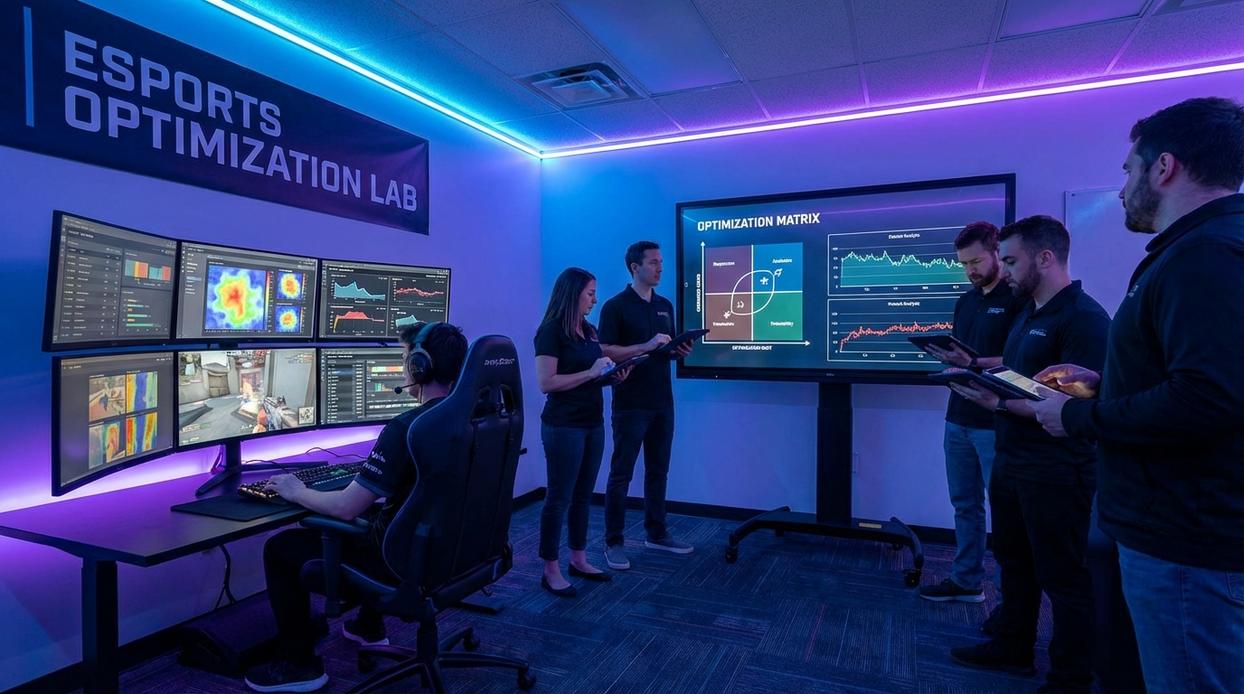
Dialing in your monitor is step one. Syncing it with your GPU and game settings? That’s where performance actually clicks.
First, GPU Control Panel: Correct vs. Default. Many players assume Windows auto-selects the best resolution and refresh rate. It doesn’t always. Manually set your monitor’s native resolution (the panel’s true pixel count) and maximum refresh rate. 144Hz set to 60Hz is like buying a sports car and driving in first gear. For NVIDIA users, enable NVIDIA Reflex Low Latency in supported titles—it reduces system latency (the delay between your click and on-screen action). For other games, set Low Latency Mode to Ultra. Lower delay vs. factory defaults? No contest.
Next, Fullscreen vs. Borderless. Borderless is convenient for alt-tabbing. Exclusive Fullscreen delivers better performance and lower input lag. Competitive players pick performance.
Then, V-Sync: On vs. Off. V-Sync removes screen tearing but adds input lag (confirmed by NVIDIA documentation). In fast shooters, that delay can cost fights. Most serious players turn it OFF.
Finally, Aspect Ratio: 16:9 vs. Stretched 4:3. Native 16:9 preserves visual accuracy. Stretched 4:3 makes enemies appear wider (popular in CS:GO). Choose clarity or perceived size—both are valid.
When paired correctly, these tweaks elevate your competitive gaming monitor settings from decent to dialed-in.
Your Calibrated Battlefield: From Settings to Wins
Think of your setup like a race car that just left the factory. It runs—but it’s capped. Now, after dialing in competitive gaming monitor settings, you’ve essentially taken it into the pit lane for a professional tune-up. The engine breathes better. The steering tightens. The delay between pedal and pavement shrinks to almost nothing.
Maximizing refresh rate and response time is your turbocharger. Higher refresh rate means more visual updates per second (measured in Hertz), which translates to smoother motion and clearer tracking. Response time—the speed at which pixels change color—reduces ghosting, that blurry afterimage trailing fast targets. Together, they’re the difference between swinging a sword in slow motion and striking with precision.
Then come tools like Black Equalizer and Color Vibrance. Think of them as adjusting the lighting on a stage so the main actor steps out of the shadows. Enemies hiding in dark corners? Suddenly visible. (No more blaming the “invisible” camper.)
Disable V-Sync and enable low-latency modes to keep your inputs from waiting in line. Your monitor is no longer just a screen—it’s your battlefield radar.
Load into practice. Feel the snap. Fine-tune. Then turn superior information into superior wins.
Master Your Setup and Win More Matches
You came here to dial in the best competitive gaming monitor settings for sharper visuals, faster reactions, and a real edge over your opponents. Now you understand how refresh rate, response time, resolution, color tuning, and motion settings all work together to eliminate blur, reduce input lag, and keep your gameplay razor sharp.
The truth is, even the best skills can feel inconsistent when your monitor isn’t optimized. Missed shots, delayed reactions, and eye strain often come down to poor configuration—not poor performance. Fine-tuning your settings removes those hidden disadvantages and lets your mechanics shine.
Your next move is simple: apply these optimized settings today, test them in your favorite competitive title, and fine-tune based on your playstyle. If you want step-by-step breakdowns, pro-tested presets, and advanced tweaks used by top players, dive deeper into our gaming setup guides now.
Stop letting default settings hold you back. Upgrade your configuration, sharpen your edge, and take control of every match.